Product Photography
How to Get Better Shopify Product Photos in 2026: A Practical Guide
Product photos are the single biggest factor in whether a Shopify shopper clicks "Add to Cart" or bounces. In 2026, AI tools have made professional product photography accessible to every merchant. Here's a practical, step-by-step guide to getting better photos for your store.
By Prodofoto Team • 8 min read • Published March 27, 2026
Why Product Photos Matter More Than Ever
Shoppers can't touch your product. They can't try it on. They can't hold it up to the light. Your photos are doing all of that work. Studies consistently show that product image quality is the top factor influencing purchase decisions in ecommerce, ahead of descriptions, reviews, and price.
In 2026, the bar has risen. Shoppers expect lifestyle context (what does this look like in my home?), multiple angles, and professional lighting. The good news: you don't need a $5,000 photography budget to meet that bar anymore.
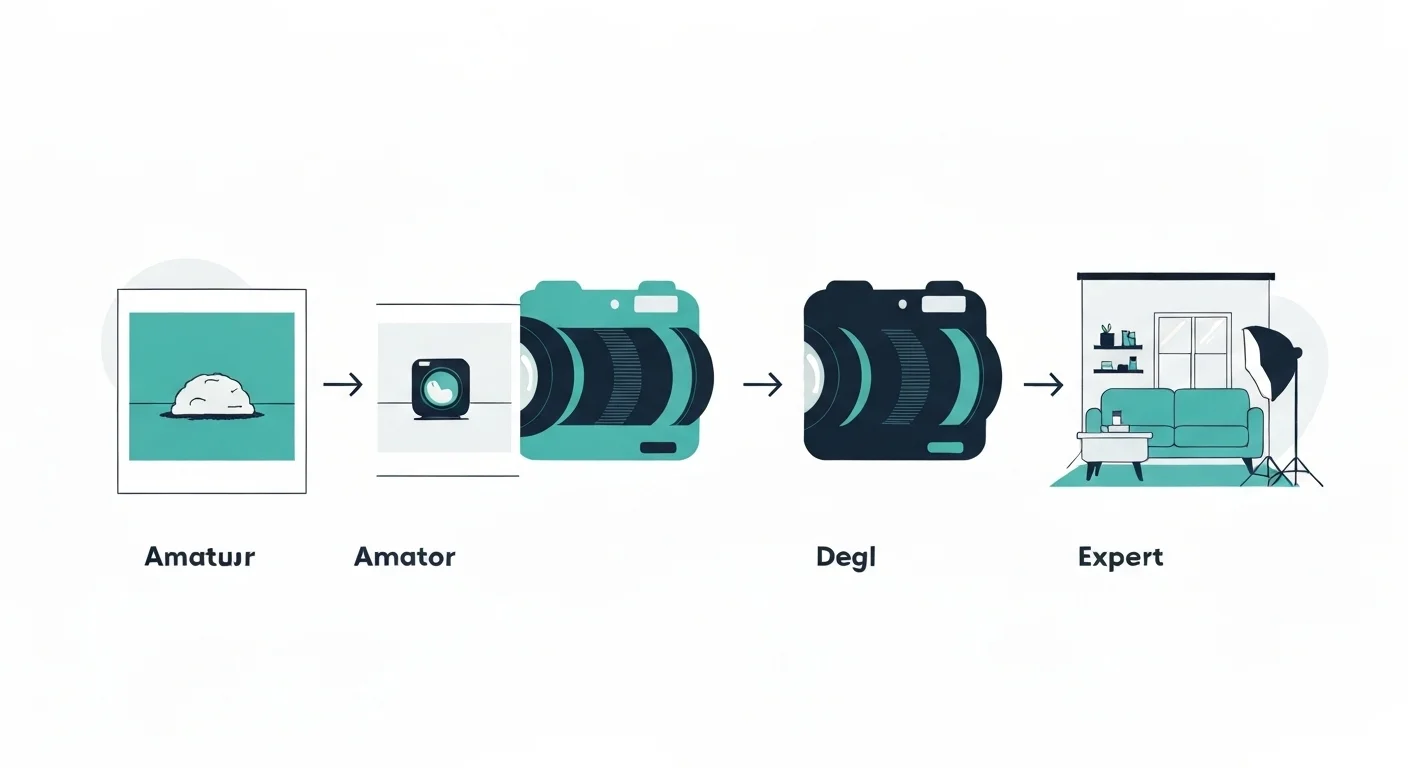
The Two-Stage Approach to Better Photos
Great product photography follows a natural progression. Stage one is figuring out your visual identity. Stage two is producing the actual photos your customers see. Different tools excel at each stage.
Stage 1: Brainstorm Your Visual Direction
Before generating store-ready photos, you need to know what you want. What mood fits your brand? Warm and cozy? Clean and minimal? Bold and colorful? This is where Shopify's new Tinker app shines.
How to Use Tinker for Brainstorming
- 1.Download Tinker (free, iOS + Android). No Shopify account needed.
- 2.Start with the Product Photography tool. Upload a basic photo of your product or describe it.
- 3.Generate 10-20 variations. Don't aim for perfection. Explore different backgrounds, lighting styles, and moods.
- 4.Save the ones that feel right. These become your visual reference for production photos.
- 5.Try the Logo tool and Social Video tools too. Tinker remembers context across projects, so your brand look stays consistent.
Tinker Tips
- •Generate in batches. Lena from Loire Jewelry created 150+ images in her first month. Volume is free, so use it.
- •Use the commute. Yukiko from Allie Beauty Protein batched jobs during her commute and reviewed results at work.
- •Don't overthink it. Tinker is for exploration. The point is to discover what works, not to produce final assets.
Stage 2: Generate Production-Ready Photos
Once you know your visual direction, it's time to create the photos your customers actually see. This is where you need a specialized tool that understands Shopify product photography.
Prodofoto is built for this exact job. Install it from the Shopify App Store, and it connects directly to your product catalog.
How to Use Prodofoto for Store Photos
- 1.Install Prodofoto from the Shopify App Store. It connects to your store automatically.
- 2.Select a product from your catalog. You only need one existing product image to start.
- 3.Choose your photo mode. Lifestyle mode places your product in realistic scenes. Product-only mode creates clean studio shots. On-model mode shows your product worn or used by AI-generated models.
- 4.Generate and review. Prodofoto produces multiple variants so you can pick the best ones.
- 5.Add to your product listing. Generated photos go directly to your Shopify product without manual downloads or uploads.
Prodofoto Tips
- •Start with your best-selling products. Better photos on your top sellers have the biggest revenue impact.
- •Use lifestyle mode for your main product image. Lifestyle context helps shoppers imagine owning the product.
- •Use product-only mode for secondary gallery images. Clean shots on neutral backgrounds show details clearly.
- •Try on-model mode for apparel, accessories, and beauty products. Seeing a product in use dramatically increases conversion rates.
Quick Product Photo Checklist for 2026
- ☑At least 5 images per product (lifestyle + product-only + detail shots)
- ☑Lead with a lifestyle image that shows the product in context
- ☑Include at least one clean, white/neutral background shot
- ☑Show scale (product next to a common object or on a person)
- ☑Consistent lighting and color temperature across your catalog
- ☑Mobile-optimized: test how images look on phone screens
- ☑WebP format for fast loading without quality loss
Getting Started Today
You don't need a photographer, a studio, or a big budget. The two-stage approach works for stores at any scale:
- 1.Download Tinker and spend 30 minutes exploring visual directions for your brand. It's free and surprisingly fun.
- 2.Install Prodofoto and generate production-ready photos for your top 5 products. You'll see the difference in your store immediately.
Better product photos aren't a nice-to-have in 2026. They're the price of entry. The tools to get them are now accessible to every merchant, regardless of budget or technical skill.
Frequently Asked Questions
What's the fastest way to improve Shopify product photos in 2026?
Use AI tools. Tinker for brainstorming your visual direction (free), then Prodofoto for generating production-quality lifestyle, product-only, and on-model shots from your existing product images.
Do I need professional photography for my Shopify store?
Not necessarily. AI product photography tools like Prodofoto now produce studio-quality results from a single product image. Professional photographers still make sense for unique creative campaigns, but day-to-day product listings can be handled with AI.
Can I use Tinker for my live Shopify store photos?
You can, but Tinker is designed for exploration and brainstorming. For store-ready photos optimized for conversion, specialized tools like Prodofoto deliver more consistent, professional results with Shopify integration.