Product update
Introducing Bulk Generation: Create Product Photos for 2–4 Products at Once
Prodofoto Bulk Generation is live. Select 2–4 products, set one creative direction, and queue a separate AI photoshoot for every product in a single run.
By X: Raymond Ma • 6 min read • Published September 3, 2026
What launched
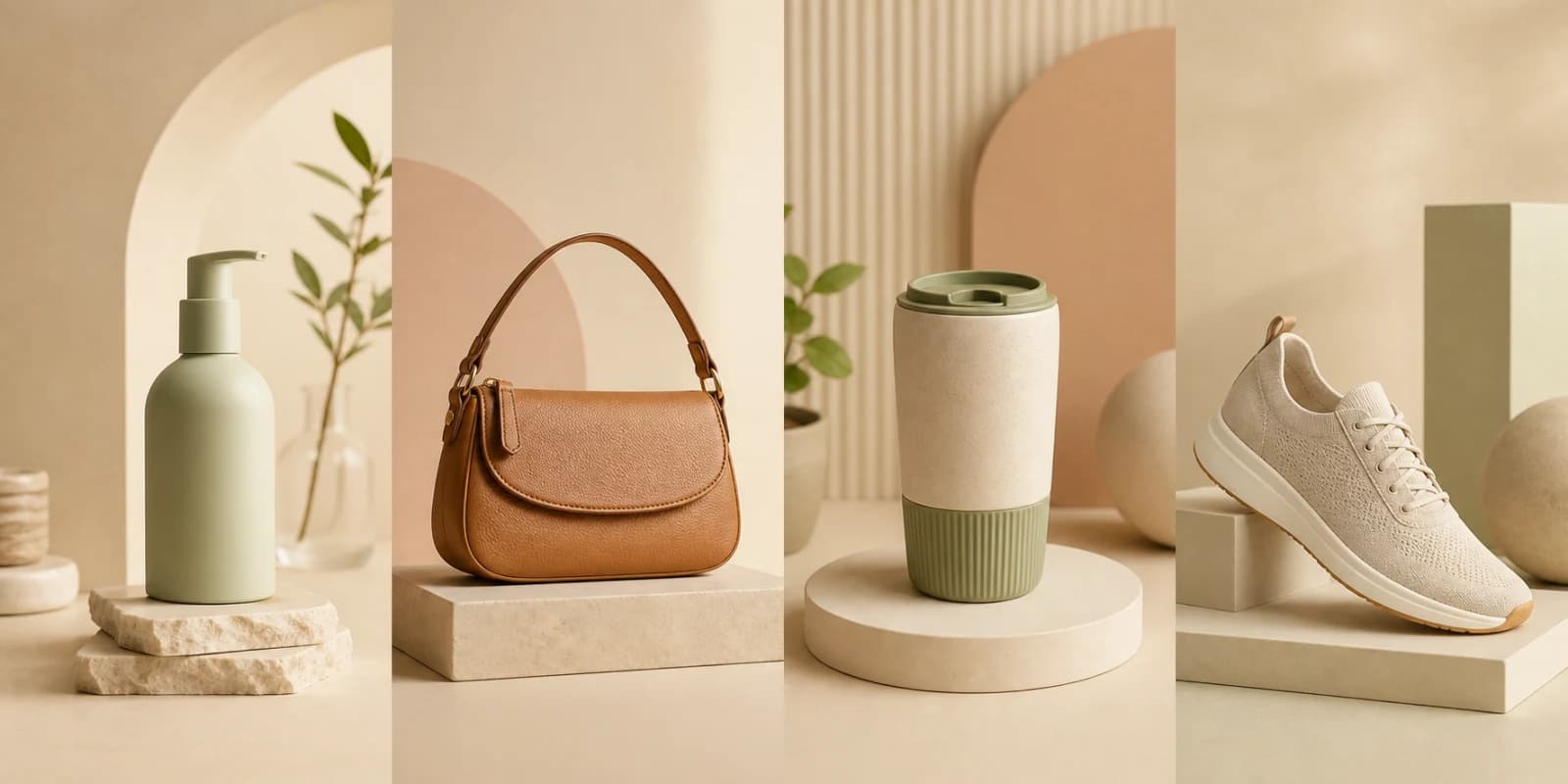
Bulk Generation lets Pro and Business merchants select 2–4 products from their Shopify catalog and generate an independent photo set for each one at the same time. Every product keeps its own source images and result page, while the batch shares the photoshoot mode, style, photo count, and creative direction you choose.
One Setup, Several Independent Photoshoots
Until now, creating a coordinated campaign meant repeating the same setup product by product. Bulk Generation removes that repetition. Choose the products once, add the right reference images for each, configure the shoot once, and send the whole batch.
Each selected product is queued as its own generation. That matters: a handbag, mug, and sneaker do not get composited into one image. They each receive a separate photo set that you can review, edit, and publish on its own product page.
The batch progress page keeps the work together. You can see which products are queued, generating, ready, or failed, then open every completed result without losing the rest of the run.
Why We Built It
Shopify merchants rarely need one isolated image. A seasonal launch, collection refresh, paid-social campaign, or bestseller update usually touches several products that should feel like they belong to the same brand moment.
The slow part is often not generation itself. It is reopening the same workflow, choosing the same mode, recreating the same direction, and checking that every product stays visually consistent. Bulk Generation turns that repeated setup into one decision and lets the product jobs run in parallel.
The current 2–4 product range is intentional. It is large enough to move a campaign forward and small enough to review product fidelity before applying the look to the next group.
Bulk Generation Is Not Multi-Product Generation
Use Bulk Generation when you want one independent photoshoot per product. Use multi-product generation when you want 2–4 products to appear together in one composite scene, such as a bundle, outfit, gift set, or collection image.
A simple rule: if every product needs its own Shopify gallery, choose Bulk. If the products need to share one frame, choose multi-product.
How to Run Your First Bulk Generation
The new flow lives in Prodofoto's Generate experience and uses products already synced from your Shopify catalog.
1. Choose Bulk — one shot per product
Open Generate and switch from Single product to Bulk. Bulk Generation is available on Pro and Business plans.
2. Select 2–4 catalog products
Pick a focused group: products from one collection, one launch, or one campaign usually make the strongest batch.
3. Confirm reference images for every product
Choose clear source images that show the actual shape, color, materials, and important details of each item.
4. Set one photoshoot direction
Choose the photoshoot mode, style options, photo count, and any available creative direction. The same setup is applied across the batch.
5. Review the cost and start the batch
Bulk Generation uses the standard 5 credits per product. The review screen shows the total and remaining balance before you generate.
6. Watch progress, then review each result
The batch page updates automatically. Open each completed photoshoot to check product accuracy, make edits, and publish the images you want.
Four Mistakes to Avoid
Speed helps only when the output is usable. Keep these checks in the workflow.
Mixing unrelated campaigns
A holiday gift set and a summer outdoor launch probably need different art direction. Batch products that should genuinely share a look.
Using weak source images
Bulk Generation cannot recover product details that are hidden, blurry, or incorrectly colored. Give every product a clean reference set.
Confusing Bulk with multi-product
Bulk creates separate shoots. Multi-product places several items in one scene. Choose based on the final gallery you need.
Publishing without review
Check logos, labels, materials, proportions, variant color, and any claim shown in an infographic before an image reaches your storefront.
A Practical Measurement Plan
Start with one group of 2–4 products rather than changing an entire storefront at once. Record a baseline for the previous images, replace only the photo set, and compare a similar traffic window after the change. If your testing setup allows it, run the old and new galleries as an A/B test.
Keep the winning creative direction as a reusable campaign brief, then run the next 2–4 product group. That gives you speed without giving up quality control.
- Product-page conversion rate
- Add-to-cart rate
- Image-gallery interaction or swipe depth
- Paid-social click-through rate when the images are used in ads
- Return reasons related to color, scale, material, or product expectations
Planning a Larger Catalog Refresh?
Use the full catalog guide to prioritize products, group campaigns, review outputs, and roll a consistent photo system across more than one batch.
Read the Shopify catalog bulk-generation guide →Bulk Generation FAQ
Who can use Bulk Generation?
Bulk Generation is available on Prodofoto Pro and Business plans.
How many products can I select?
Select between 2 and 4 Shopify products in each bulk run.
Does Bulk Generation put every product in the same image?
No. Bulk Generation creates a separate photoshoot for each selected product. Choose multi-product generation when you want several products composited into one scene.
How many credits does a bulk run use?
Each product uses the standard 5 generation credits. A two-product run uses 10 credits, three products use 15, and four products use 20. Prodofoto shows the total before you start.
Can I use different settings for each product in one batch?
The batch shares one photoshoot setup. For different modes or creative directions, put those products in separate bulk runs.
What happens if one product fails?
The batch page shows each product's status independently. Credits for a failed generation are refunded, while completed products remain available to review.
Put Your Next Product Group in One Queue
Install Prodofoto, choose 2–4 products from your Shopify catalog, and launch a coordinated set of independent AI photoshoots.
Install Prodofoto on Shopify